Lab 02 — RRC Lite Firmware
Raspberry Pi 5 · Hiwonder RRC Lite (STM32F407VET6) · Ubuntu Server 24.04 · ROS 2 Jazzy
Objectives: Connect the RRC Lite controller to the Pi 5 and understand how they talk:
the serial link, the 0xAA 0x55 packet protocol and what the firmware sends on its own.
Use that to find out which firmware the board runs. Then install the Linux tools for
STM32 flashing, back up the current firmware, and flash new firmware from the Pi
over the same USB-C cable with stm32flash. Finish by running Hiwonder’s
ros_robot_controller ROS 2 node against the board.
Before You Start
- Lab 01 is done: the Pi runs Ubuntu Server 24.04 with ROS 2 Jazzy, and
ssh robot01works - The RRC Lite board, its battery (power input DC 5–12.6 V, e.g. a 2S or 3S Li-ion pack), and a USB-A to USB-C data cable (not a charge-only cable)
- On your laptop, the Hiwonder Appendix folder and the board’s schematic
(
1. RRC Lite Hardware Course/Lesson 2 …/SCH_Ros Robot Controller Lite V1.0.pdf). This lab uses:
| Appendix path | What it is |
|---|---|
Factory Firmware/RosRobotControllerLite_ros_250814.hex |
the factory firmware, Intel HEX |
Source Code/RosRobotControllerLite_ros_250814/ |
its source: STM32CubeMX + FreeRTOS, a Keil MDK-ARM project |
ROS Development Package/ROS2/ros_robot_controller-ros2/src/ |
Hiwonder’s ROS 2 packages: ros_robot_controller (node + Python SDK) and ros_robot_controller_msgs |
ROS Development Package/RRCLite Communication Protocol with the Host Computer Analysis.pdf |
the packet protocol (Part 3) |
Factory Firmware/Firmware Flashing Tutorial.pdf, Firmware Download Troubleshooting Guide/ |
Hiwonder’s flashing guide, for Windows (Part 5.3) |
Copy what the Pi needs, from the laptop:
cd "<path>/Appendix"
ssh robot01 'mkdir -p ~/lab02 ~/ros2_ws/src'
scp "Factory Firmware/RosRobotControllerLite_ros_250814.hex" robot01:~/lab02/
scp -r "ROS Development Package/ROS2/ros_robot_controller-ros2/src/"* robot01:~/ros2_ws/src/
And the lab’s own scripts, on the Pi:
cd ~/lab02
for f in 99-rrclite.rules rrclite_probe.py flash_rrclite.sh; do
  curl -fsSLO https://hmarthens1.github.io/rpi5-ros2-rrclite/Lab_02/code/$f
done
⬇️ 99-rrclite.rules · ⬇️ rrclite_probe.py · ⬇️ flash_rrclite.sh
Part 1 — The board
| Part | Details |
|---|---|
| Microcontroller | STM32F407VET6: Arm Cortex-M4F at 168 MHz, 512 KB flash from 0x08000000, 192 KB RAM |
| USB-serial chip | CH9102F, USB ID 1a86:55d4, on the Type-C port labelled UART1 |
| Host link | STM32 USART1 (pins PA9/PA10) ↔ CH9102F ↔ USB ↔ the Pi’s /dev/ttyACM0 |
| Firmware | Hiwonder RosRobotControllerLite “ros” firmware, version 250811 (the factory …_250814.hex is byte-for-byte the .hex in the source folder) |
| On the board | 4 encoder-motor ports, PWM servo ports, a serial bus-servo port, QMI8658 IMU, buzzer, LEDs, keys K1/K2, battery voltage sensing, SBUS input, USB-host port for a gamepad |
| Buttons for flashing | RST (NRST, with a 10 kΩ pull-up and 100 nF capacitor C12) and BOOT (pulls BOOT0 high) |
| SWD header | J1, 4 pins: 1 = 3V3, 2 = GND, 3 = SWDIO (PA13), 4 = SWCLK (PA14) |
| Power | battery → switch S1 → VIN (motors, servos) → regulators for 5 V and 3.3 V. The UART1 port’s USB VBUS also feeds the 5 V rail through diode D3, so the STM32 runs from the USB cable alone: no battery needed to probe or flash |
| Power for the Pi | a 5 V / 5 A USB-C output with USB-PD (SY8370 converter + IP2723T PD chip), meant to power the Raspberry Pi 5 from the robot’s battery (Lab 01, Power) |
PA9/PA10 is also where the STM32’s built-in ROM bootloader listens. That is why the same USB-C cable is used both to drive the robot and to flash it. Hiwonder’s troubleshooting guide says it too: the UART1 Type-C port is the only port that can flash the board.
Firmware vs. bootloader. The firmware is your program in flash, and it speaks Hiwonder’s protocol at 1 Mbaud. The ROM bootloader is ST’s, burned into the chip at the factory. It can’t be erased, so a failed flash never “bricks” the board: you can always get back to the bootloader and flash again.
Part 2 — Connect the board to the Pi
2.1 Plug in and find it
Plug the USB-C end of the data cable into the board’s UART1 port and the USB-A end into any USB port on the Pi. The board’s logic powers up from the cable; the battery is only needed for motors and servos (and for the Pi’s power on the robot).
Two USB-C ports, two jobs. UART1 is the data link to the Pi. The 5 V PD output powers the Pi. On the robot both cables are connected: the PD output to the Pi’s USB-C power input, and UART1 to one of the Pi’s USB-A ports.
Hiwonder’s FAQ calls the 5V5A port “serial port 2”, but it is power only: it has no serial chip behind it and can’t be used to talk to or flash the board.
lsusb | grep 1a86
# Bus 003 Device 002: ID 1a86:55d4 QinHeng Electronics USB Single Serial
sudo dmesg | tail -5
# cdc_acm 3-1:1.0: ttyACM0: USB ACM device
ls -l /dev/ttyACM*
# crw-rw---- 1 root dialout 166, 0 ... /dev/ttyACM0
The CH9102F uses the standard cdc_acm driver that is already in Ubuntu’s kernel, so
no driver install is needed.
2.2 Permission to use the port
Serial ports belong to the dialout group. Add yourself once, then log out and in again:
sudo usermod -aG dialout $USER
exit                          # then ssh robot01 again
groups                        # ... dialout ...
2.3 A fixed name: the udev rule
ttyACM0 can become ttyACM1 when another USB-serial device (a lidar, say) is plugged
in first. The udev rule gives the board a name that never changes, /dev/rrclite, and
tells ModemManager (if installed) not to probe it:
cd ~/lab02
sudo cp 99-rrclite.rules /etc/udev/rules.d/
sudo udevadm control --reload-rules && sudo udevadm trigger
ls -l /dev/rrclite            # -> /dev/rrclite -> ttyACM0
Hiwonder’s own rule (
ros_robot_controller/scripts/99-ttyACM0.rules) does the ModemManager part, but setsMODE="0777"andGROUP="ubuntu"on everyttyACM0. Use the rule above instead. Don’t install both.
Part 3 — How the Pi talks to the firmware
This summarises RRCLite Communication Protocol with the Host Computer Analysis.pdf,
checked against the firmware source (Hiwonder/Misc/packet.c, Hiwonder/System/packet_handle.c)
and Hiwonder’s Python SDK (ros_robot_controller_sdk.py).
3.1 Serial settings
1 000 000 baud, 8 data bits, no parity, 1 stop bit (8N1), no flow control.
The firmware sets this up on USART1 (USART1.BaudRate=1000000 in RosRobotControllerM4.ioc).
3.2 Frame format (both directions)
| Byte | Field | Notes |
|---|---|---|
| 0–1 | 0xAA 0x55 |
start of frame |
| 2 | function | what the frame is about (table below) |
| 3 | length | number of data bytes, 0–255 |
| 4 … | data | the parameters, little-endian (1000 = 0xE8 0x03) |
| last | CRC-8 | over function, length and data. Dallas/Maxim CRC-8: reflected polynomial 0x8C, start value 0 |
The SDK’s comment in
PacketControllerStatelists Length before Function. The code, the firmware and the PDF all use function, then length.
3.3 Function codes
| Code | Name | Pi → board | Board → Pi |
|---|---|---|---|
| 0 | SYS |
battery low-voltage limit (sub-command 1) | battery voltage every ~1 s: sub-command 0x04 + uint16 millivolts |
| 1 | LED |
u8 id, u16 on ms, u16 off ms, u16 repeat |
|
| 2 | BUZZER |
u16 Hz, u16 on ms, u16 off ms, u16 repeat |
|
| 3 | MOTOR |
sub-cmd 0x00 one motor, 0x01 several, 0x02 stop one, 0x03 stop by bit mask; speeds are float rev/s |
|
| 4 | PWM_SERVO |
set position(s) (pulse 500–2500 µs), offset, read position/offset | replies to reads |
| 5 | BUS_SERVO |
move, torque on/off, ID, offset, limits, read position/voltage/temperature | replies to reads |
| 6 | KEY |
key events: u8 key id, u8 event (click, long press, …) |
|
| 7 | IMU |
~50 Hz: 6 × float (accel x y z, gyro x y z) |
|
| 8 | GAMEPAD |
USB gamepad state | |
| 9 | SBUS |
RC receiver channels | |
| 10 | OLED |
text for an OLED display | |
| 11 | RGB |
RGB LED colours |
Motor IDs. In the frame, motors are numbered from 0. The SDK’s
set_motor_speed([[1, 0.3], …])takes 1–4 and subtracts 1. The PDF’s examples use 1.
Codes 10 and 11 exist in this firmware but not in the ROS 2 SDK, which stops at 9.
3.4 Worked examples
The CRC values below were computed with the SDK’s own checksum_crc8():
| Command | Bytes |
|---|---|
| LED 1: on 100 ms, off 100 ms, 5 times | AA 55 01 07 01 64 00 64 00 05 00 37 |
| Buzzer: 1400 Hz, on 100 ms, off 100 ms, 5 times | AA 55 02 08 78 05 64 00 64 00 05 00 F0 |
| Buzzer: 1000 Hz, on 100 ms, off 900 ms, once | AA 55 02 08 E8 03 64 00 84 03 01 00 2E |
Stop motors 1–4 (mask 0b1111) |
AA 55 03 02 03 0F D3 |
| (from the board) battery 7.40 V | AA 55 00 03 04 E8 1C 2B |
Try one by hand. Python is enough, no ROS 2 needed:
python3 -c "
import serial; s = serial.Serial('/dev/rrclite', 1000000)
s.write(bytes.fromhex('AA 55 02 08 E8 03 64 00 84 03 01 00 2E'))"
The board beeps once. Change one byte without fixing the CRC, and it stays silent: the firmware drops frames with a wrong checksum.
Part 4 — Which firmware is running?
There is no “get version” command in the protocol. There are two ways to tell.
4.1 By behaviour: rrclite_probe.py
The probe listens at 1 Mbaud, decodes every frame and reports what it sees. With
--beep it also sends the buzzer command from Part 3.4:
cd ~/lab02
python3 rrclite_probe.py --beep --seconds 3
Port /dev/rrclite at 1000000 baud
-> BUZZER  AA 55 02 08 E8 03 64 00 84 03 01 00 2E

Received 4210 bytes in 3.0 s: 150 good frames, 0 bad CRC, 0 stray bytes
  SYS            3 frames  (  1.0 /s)   last: SYS battery 7.82 V
  IMU          147 frames  ( 49.0 /s)   last: IMU accel 0.01 -0.02 1.00  gyro 0.12 -0.30 0.05

RESULT: the board runs firmware that speaks Hiwonder's 0xAA 0x55 protocol at 1 Mbaud.
        Battery + IMU reports match the RosRobotControllerLite 'ros' firmware.
| You see | It means |
|---|---|
| battery ~1/s + IMU ~50/s, beep heard | Hiwonder’s ROS firmware (the factory one, or one built from its source) |
| bytes arrive but no valid frames | another firmware, or another baud rate |
| nothing at all | no firmware, board off, or the board is sitting in the bootloader (power-cycle it) |
--raw prints every frame in hex; --led blinks the LED instead.
4.2 Exactly: compare the flash with a .hex
The bootloader can read the flash back. flash_rrclite.sh compare reads as many bytes as
the .hex file holds and compares them:
bash flash_rrclite.sh compare RosRobotControllerLite_ros_250814.hex
# OK  IDENTICAL: the board runs RosRobotControllerLite_ros_250814.hex
That needs the tools from Part 5 and the bootloader from Part 6. Come back to it after Part 6.
Read protection. If a reading step fails with Failed to read memory, the chip has read-out protection (RDP level 1) turned on. You can still flash it, but turning RDP off (
stm32flash -k) erases the whole chip, so there is no backup in that case.
Part 5 — Tools for flashing on Linux
5.0 What you need
Everything below runs on the Pi. A Linux laptop works the same way.
| Item | Why | |
|---|---|---|
| Required | the RRC Lite and a USB-A to USB-C data cable into its UART1 port | the only port that can flash; the cable also powers the STM32, so the battery can stay off |
| Required | stm32flash |
the flashing tool (5.1) |
| Required | the firmware: a .hex (or .bin) built for the RRC Lite |
the factory Appendix/Factory Firmware/…_250814.hex, a lesson example (Part 7.4), or your own build (Part 8) |
| Comes with Ubuntu | python3, psmisc (fuser) |
flash_rrclite.sh uses them to read .hex files and to check the port isn’t busy |
| Recommended | picocom, binutils, python3-serial |
look at the port, convert HEX ↔ BIN, run the probe and the ROS 2 node |
| Recommended | flash_rrclite.sh, rrclite_probe.py, 99-rrclite.rules |
this lab’s scripts (Before You Start) |
| Optional | an ST-Link or J-Link + stlink-tools / openocd / SEGGER J-Link software |
flashing and debugging over SWD through header J1, when the USB route can’t be used (5.2) |
| Not needed | ATK-XISP, FlyMcu, Flash Loader Demonstrator, the serial assistants, SetupSTM32CubeMX-6.8.1-Win.exe, Keil MDK |
Hiwonder’s Windows tools (5.3). Keil MDK is only needed to build new firmware (Part 8) |
No driver needs installing: the CH9102F uses Linux’s built-in cdc_acm driver (Part 2.1).
5.1 Install
sudo apt install -y stm32flash psmisc picocom binutils python3-serial
command -v stm32flash               # /usr/bin/stm32flash
| Tool | Used for |
|---|---|
stm32flash |
the main tool: talks to the STM32’s ROM bootloader over a serial port (ST’s AN3155 protocol). Reads .hex and .bin, erases, writes, verifies, and toggles DTR/RTS to enter and leave the bootloader |
picocom |
a serial terminal, to look at the port by hand (picocom -b 1000000 /dev/rrclite, quit with Ctrl+A Ctrl+X) |
binutils |
objcopy -I ihex -O binary fw.hex fw.bin converts between HEX and raw binary |
python3-serial |
pyserial: the probe, Hiwonder’s SDK and the ROS 2 node |
psmisc |
fuser: shows which program has the serial port open |
5.2 Other options (not needed for this lab)
| Tool | When |
|---|---|
STM32CubeProgrammer (ST, free, GUI + STM32_Programmer_CLI) |
on an x86-64 Linux laptop (no arm64 build, so not on the Pi). It does the same UART flashing: STM32_Programmer_CLI -c port=/dev/ttyACM0 br=115200 -w fw.hex -v -rst. You may have to put the board in the bootloader first (flash_rrclite.sh leaves it there if interrupted) |
stlink-tools (st-flash) or openocd + an ST-Link |
flashing and debugging over SWD, through the 4-pin header J1 (3V3, GND, SWDIO, SWCLK; connect 3V3 only as the reference, power the board from USB). Works even when the UART route doesn’t. Hiwonder’s developers used a J-Link this way (the source has a .jflash file) |
arm-none-eabi-gcc |
compiling the firmware on Linux. The Hiwonder project is set up for Keil MDK (Windows), see Part 8 |
5.3 What Hiwonder’s Windows tools do
The Software folder has ATK-XISP, FlyMcu and ST’s Flash Loader Demonstrator.
They are Windows-only, and all three do what stm32flash does on Linux. Hiwonder’s
tutorial sets ATK-XISP to 115200 baud and “Reset@DTR Low(<-3V), ISP@RTS High”. That
setting describes the board’s auto-download circuit, which Part 6 explains.
Part 6 — How the board gets into its bootloader
At reset, the STM32 checks its BOOT0 pin:
| BOOT0 at reset | The chip starts |
|---|---|
| low | your firmware, from flash at 0x08000000 |
| high | ST’s ROM bootloader, which waits for 0x7F on USART1, measures the baud rate from it, and then accepts AN3155 commands at 8 data bits, even parity (8E1) |
There are two ways to get there: the buttons, or the auto-download circuit that lets the Pi do it over the cable.
6.1 The buttons
- Hold BOOT (BOOT0 high)
- Press and release RST: the chip restarts and sees BOOT0 high → bootloader
- Release BOOT
The bootloader keeps running until the next reset. To go back to the firmware, press RST alone.
6.2 The auto-download circuit
From the schematic, sheet 1, serial port / download circuit:
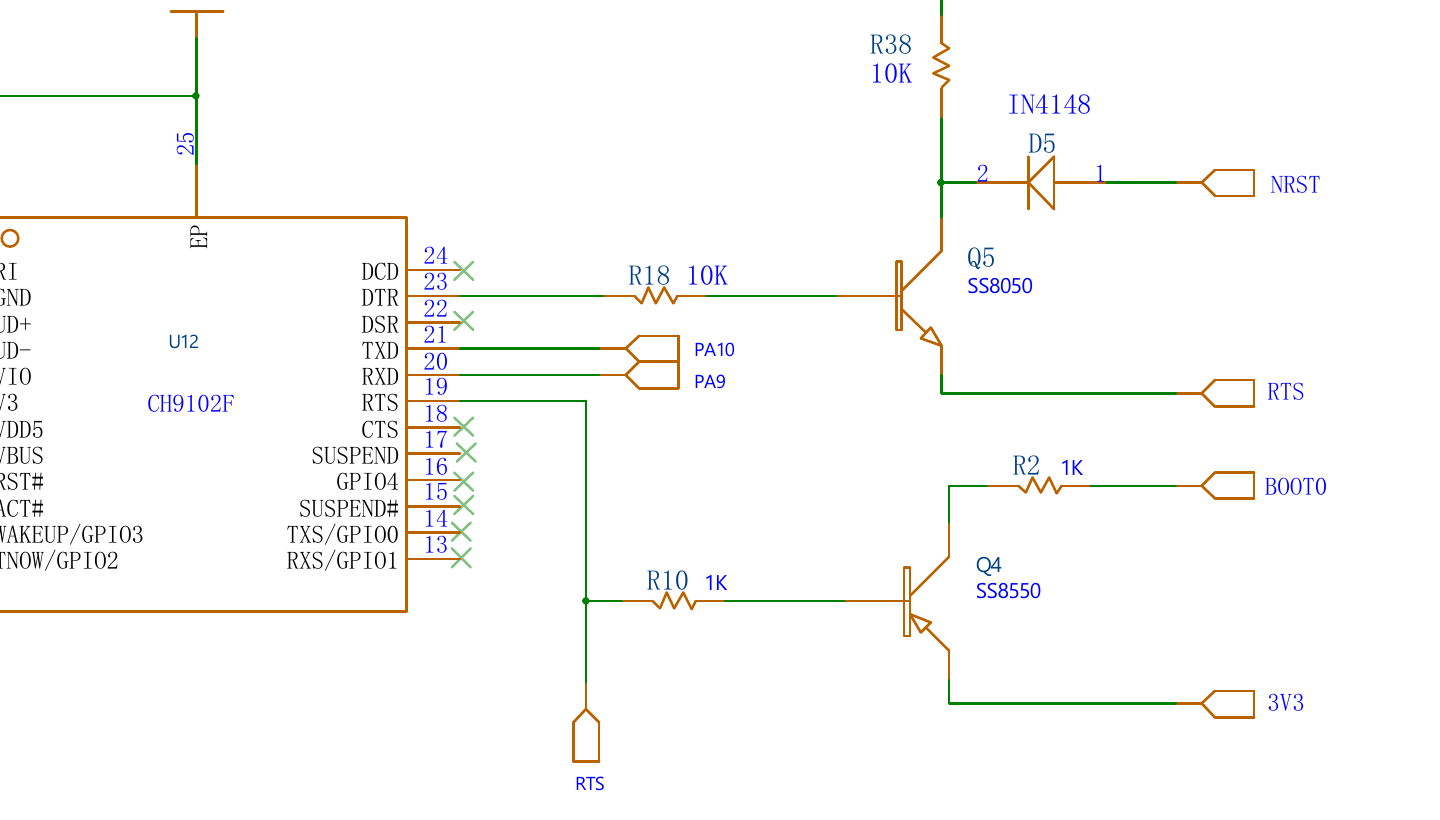
| Part | Wiring | Effect |
|---|---|---|
| Q4 (SS8550, PNP) | base ← R10 ← CH9102F RTS#; emitter 3V3; collector → R2 → BOOT0 | RTS# low → BOOT0 high |
| Q5 (SS8050, NPN) | base ← R18 ← CH9102F DTR#; emitter → RTS#; collector → D5 → NRST | DTR# high and RTS# low → NRST low (reset) |
A program sets the lines with on (asserted, pin low) and off (pin high):
| RTS | DTR | BOOT0 | NRST | What it’s for |
|---|---|---|---|---|
| off | off | low | released | idle: the port is closed |
| off | on | low | released | running: safe while a program talks to the firmware |
| on | on | high | released | what Linux sets when a port is opened (see the note below) |
| on | off | high | held low | reset, ready for the bootloader |
So, in stm32flash’s -i syntax (rts/dtr = on, -rts/-dtr = off, , = wait 100 ms,
& = no wait):
entry:  rts&-dtr , dtr , rts    reset with BOOT0 high, then DTR on releases the reset
                                while RTS keeps BOOT0 high, then wait -> ROM bootloader
exit:   rts&-dtr , -rts     reset again, then RTS off: BOOT0 falls within
                            microseconds (10 kΩ pull-down), NRST rises over
                            ~1 ms (10 kΩ + 100 nF C12)      -> your firmware
The trailing , rts sets nothing new (RTS is already on); it is there for its 100 ms
wait. stm32flash sends its first byte (0x7F) the moment the sequence ends, and NRST
needs about a millisecond to rise, plus the bootloader’s start-up time. Without the wait,
the bootloader isn’t listening yet and stm32flash reports Failed to init device.
The exit works because of that difference in speed: releasing RTS releases both pins at once, but BOOT0 is already low when NRST comes back up. This is the board’s “Reset@DTR Low, ISP@RTS High” setting in ATK-XISP (Part 5.3).
An open port holds BOOT0 high. Linux turns on both DTR and RTS when a program opens a serial port. That doesn’t reset the board, so the firmware keeps running, but BOOT0 stays high. If the board resets while the port is open (RST pressed, a brown-out when the motors start), it comes back up in the bootloader and goes silent.
rrclite_probe.pyavoids this by opening the port with DTR on and RTS off. Part 9 applies the same one-line fix to Hiwonder’s SDK. (The firmware has a watchdog driver, but never starts it, so it doesn’t reset the board on its own.)
6.3 Reach the bootloader
Stop anything that uses the port (the ROS 2 node from Part 9, a picocom, the probe), then:
cd ~/lab02
bash flash_rrclite.sh info
Something like:
==> Entering the bootloader with DTR/RTS:  -i 'rts&-dtr,dtr,rts:rts&-dtr,-rts'
    OK  bootloader answered (0x0413 (STM32F40xxx/41xxx))

==> Chip information
Interface serial_posix: 115200 8E1
Version      : 0x31
Option 1     : 0x00
Option 2     : 0x00
Device ID    : 0x0413 (STM32F40xxx/41xxx)
- RAM        : Up to 128KiB  (12288b reserved by bootloader)
- Flash      : Up to 1024KiB (size first sector: 1x16384)
- Option RAM : 16b
- System RAM : 30KiB
Device ID: 0x0413 is the STM32F40x/41x family: the bootloader is reachable. The exit
sequence has already reset the board into its firmware. Run
python3 rrclite_probe.py --beep to check that the firmware is running again.
stm32flash reports the family’s largest flash (1024 KiB). The F407VE has 512 KB.
If the bootloader doesn’t answer, use the buttons. With --manual, the script asks you to
press them instead of using DTR/RTS:
bash flash_rrclite.sh --manual info
6.4 The same thing by hand
The script runs ordinary stm32flash commands:
SEQ='rts&-dtr,dtr,rts:rts&-dtr,-rts'
stm32flash -b 115200 -i "$SEQ" -R /dev/rrclite                    # chip info, then run
stm32flash -b 115200 -i "$SEQ" -r backup.bin -S 0x08000000:524288 -R /dev/rrclite
stm32flash -b 115200 -i "$SEQ" -w firmware.hex -v -R /dev/rrclite  # write + verify + run

# with the buttons (BOOT held, RST tapped, BOOT released) instead of -i:
stm32flash -b 115200 -w firmware.hex -v -R /dev/rrclite
Part 7 — Back up, then flash
7.1 Back up the current firmware
bash flash_rrclite.sh backup
# OK  saved rrclite_backup_20261007_101500.bin  (md5 ...)
This reads the whole 512 KB flash (about a minute). Copy it to your laptop with
scp robot01:lab02/rrclite_backup_*.bin . and keep it. To put it back later:
stm32flash -b 115200 -i 'rts&-dtr,dtr,rts:rts&-dtr,-rts' -w rrclite_backup_….bin -v -R /dev/rrclite.
A .bin has no addresses, and stm32flash writes it from the start of flash.
Now try the exact check from Part 4.2:
bash flash_rrclite.sh compare RosRobotControllerLite_ros_250814.hex
7.2 Flash
Practise with the factory firmware: writing what the board already runs changes nothing,
and the steps are the same for any new .hex:
bash flash_rrclite.sh flash RosRobotControllerLite_ros_250814.hex
    OK  RosRobotControllerLite_ros_250814.hex: 51460 bytes at 0x08000000, md5 f32bbdc5c19ac6469b63f659dd2ca781
==> Entering the bootloader with DTR/RTS:  -i 'rts&-dtr,dtr,rts:rts&-dtr,-rts'
    OK  bootloader answered (0x0413 (STM32F40xxx/41xxx))

    This ERASES the firmware on the board and writes RosRobotControllerLite_ros_250814.hex.
    Made a backup first?  (bash flash_rrclite.sh backup)
    Type 'yes' to flash: yes

==> Erasing, writing and verifying (about 30-60 s). Don't unplug the board.
Erasing memory
Wrote and verified address 0x0800c904 (100.00%) Done.
Resetting device...
    OK  written and verified - the board was reset into the new firmware
What happens:
| Step | Done by |
|---|---|
check the .hex: valid records and checksums, fits in 512 KB from 0x08000000 |
the script |
DTR/RTS entry sequence → bootloader (Part 6.2), 0x7F → baud rate locked at 115200 |
stm32flash -i |
| erase only the flash sectors the image covers | stm32flash (default for -w) |
write in 256-byte blocks, read each one back (-v) |
stm32flash |
| exit sequence: reset, then BOOT0 drops before NRST rises → the new firmware starts (Part 6.2) | stm32flash -R |
7.3 Check the result
python3 rrclite_probe.py --beep
bash flash_rrclite.sh compare RosRobotControllerLite_ros_250814.hex
The probe should show the same battery and IMU frames as in Part 4.1, and the board beeps.
If flashing stops halfway (cable pulled), the old firmware is partly erased and the board won’t answer at 1 Mbaud. That is fine: the ROM bootloader is untouched. Fix the cause and run the same
flashcommand again, or use the buttons (--manual).
7.4 Practise: flash a different firmware, then restore
Hiwonder’s lessons in RRC Lite Controller/3. RRC Lite Program Analysis/ each come with a
ready-built .hex for this board, inside the zip at
…/MDK-ARM/RosRobotControllerM4/RosRobotControllerM4.hex. All of them start at
0x08000000, so they flash the same way as the factory firmware:
| Lesson | Zip | Size |
|---|---|---|
| 2 — LED and buzzer | 2.3 LED & Buzzer Program.zip (two programs: 1.Buzzer Program, 2.LED Program) |
~43 KB |
| 3 — Buttons | rosrobotcontrollerm4_key_buzzer.zip |
~44 KB |
| 6 — RGB LEDs | RRCLite_RGB.zip |
~50 KB |
| 9 — Bus servos | RRCLite_Bus servo2.zip |
~50 KB |
| 11, 12 — Encoder motors, PID | RosRobotControllerLite_ros.zip |
~52 KB |
On the laptop, take the hex out of the zip and copy it over (Lesson 6 as the example):
cd "<path>/RRC Lite Controller/3. RRC Lite Program Analysis/Lesson 6 RGB LED Display Source Code Analysis"
unzip -j -o RRCLite_RGB.zip 'RRCLite_RGB/MDK-ARM/RosRobotControllerM4/RosRobotControllerM4.hex'
scp RosRobotControllerM4.hex robot01:~/lab02/lesson06_rgb.hex
On the Pi:
cd ~/lab02
bash flash_rrclite.sh flash lesson06_rgb.hex                          # the demo runs: watch the RGB LEDs
python3 rrclite_probe.py                                              # does the demo still speak the protocol?
bash flash_rrclite.sh compare RosRobotControllerLite_ros_250814.hex   # -> DIFFERENT
bash flash_rrclite.sh flash RosRobotControllerLite_ros_250814.hex     # restore the factory firmware
python3 rrclite_probe.py --beep                                       # battery + IMU again
Lesson demos are cut-down programs: some don’t send the battery and IMU frames, so the probe may report less, or nothing. Flash the factory firmware again before Part 9: the ROS 2 node needs it.
Part 8 — Where new firmware comes from
The .hex you flash is built from Hiwonder’s source with Keil MDK-ARM on Windows
(MDK-ARM/RosRobotControllerM4.uvprojx). Hiwonder’s Firmware Flashing Tutorial.pdf,
part 1, shows the build:
- Project → Options for Target → Output → tick Create HEX File
- Project → Build Target (F7). The
.hexlands in the project’s output folder - Copy it to the Pi and flash it (Part 7.2):
scp RosRobotControllerM4.hex robot01:~/lab02/        # from the Windows/laptop side
ssh robot01 'cd ~/lab02 && bash flash_rrclite.sh flash RosRobotControllerM4.hex'
Version-control what you change: the source folder is already a git repository
(git log shows Hiwonder’s history).
Building on Linux means moving the project off Keil: regenerate it from
RosRobotControllerM4.iocwith STM32CubeMX as a Makefile or CMake project and build witharm-none-eabi-gcc. Keil-specific parts (thearmclangstartup file, scatter file, compiler flags) need replacing. That is a project of its own and is not needed to flash a.hex.
Part 9 — Run Hiwonder’s ROS 2 node
The node (ros_robot_controller) opens /dev/ttyACM0 at 1 Mbaud using the SDK from Part 3
and turns frames into ROS 2 topics. You copied it to ~/ros2_ws/src in Before You Start.
First, the one-line fix from Part 6.2: after opening the port, turn RTS off, so BOOT0 stays low while the node runs and a reset brings back the firmware, not the bootloader:
cd ~/ros2_ws/src/ros_robot_controller/ros_robot_controller
grep -n 'self.port = serial.Serial' ros_robot_controller_sdk.py
sed -i 's/^\(\s*\)self.port = serial.Serial(device, baudrate, timeout=timeout)$/&\n\1self.port.rts = False  # keep BOOT0 low (auto-download circuit)/' ros_robot_controller_sdk.py
grep -n -A1 'self.port = serial.Serial' ros_robot_controller_sdk.py
#     self.port = serial.Serial(device, baudrate, timeout=timeout)
#     self.port.rts = False  # keep BOOT0 low (auto-download circuit)
DTR stays on, so turning RTS off never resets the board. Then build:
cd ~/ros2_ws
ls src                                   # ros_robot_controller  ros_robot_controller_msgs
rosdep install --from-paths src --ignore-src -y
colcon build --symlink-install
source ~/.bashrc
ros2 launch ros_robot_controller ros_robot_controller.launch.xml
In a second SSH session:
ros2 topic list | grep ros_robot_controller
ros2 topic echo /ros_robot_controller/battery          # millivolts, ~1/s
ros2 topic hz /ros_robot_controller/imu_raw            # ~50 Hz
ros2 topic pub --once /ros_robot_controller/set_buzzer ros_robot_controller_msgs/msg/BuzzerState \
  "{freq: 1000, on_time: 0.1, off_time: 0.9, repeat: 1}"
| Topic | Type | Direction |
|---|---|---|
~/battery |
std_msgs/UInt16 |
board → ROS |
~/imu_raw |
sensor_msgs/Imu |
board → ROS |
~/button, ~/joy, ~/sbus |
keys, gamepad, RC | board → ROS |
~/set_buzzer, ~/set_led, ~/set_motor |
BuzzerState, LedState, MotorsState |
ROS → board |
~/pwm_servo/set_state, ~/bus_servo/set_state |
servo commands | ROS → board |
~/pwm_servo/get_state, ~/bus_servo/get_state |
services | ROS ↔ board |
To give the robot its own namespace (Lab 01, Part 9.3), start it with ros2 run instead:
ros2 run ros_robot_controller ros_robot_controller --ros-args -r __ns:=/$(hostname)
# topics: /robot01/ros_robot_controller/battery, ...
Stop the node (
Ctrl+C) before flashing. Only one program can hold the serial port, andflash_rrclite.shrefuses to start while something else has it open.
Troubleshooting
| Problem | Try this |
|---|---|
No 1a86:55d4 in lsusb |
Cable in the UART1 Type-C port? A charge-only cable has no data wires. Try another Pi USB port |
Permission denied: '/dev/ttyACM0' |
sudo usermod -aG dialout $USER, then log out and in (Part 2.2) |
/dev/rrclite missing |
Rule not installed or not reloaded (Part 2.3). udevadm info -a /dev/ttyACM0 \| grep -m2 'idVendor\|idProduct' |
| Probe: nothing received | The board is waiting in the bootloader: press RST, or bash flash_rrclite.sh run. Or there is no firmware: flash one (Part 7) |
| The board went silent after RST was pressed or the motors started, while the ROS 2 node ran | It reset with BOOT0 held high by the open port and is in the bootloader (Part 6.2). Press RST, and apply the SDK fix in Part 9 |
| Probe: bytes but no valid frames | Another firmware or another baud rate. picocom -b 115200 /dev/rrclite to look |
| Probe: many bad CRC | Two programs read the port (the ROS 2 node is running), or a bad cable |
flash_rrclite.sh: in use by another program |
Stop the ROS 2 node / picocom / probe. fuser -v /dev/rrclite shows who |
The bootloader did not answer / Failed to init device |
Retry: Hiwonder’s guide says COM_CMD_TIMEOUT is often fixed by trying again. Then use the buttons: bash flash_rrclite.sh --manual info. Then --baud 57600. Last resort: SWD through J1 (Part 5.2) |
Stalls at Erasing memory |
Erasing a 128 KB F4 sector takes 1–2 s each. Wait 30 s. If it hangs, retry (Hiwonder’s guide 2.3) |
Failed to write memory / verify error |
Retry. If it repeats: a lower baud rate (--baud 57600), a shorter cable, or a weak battery |
Failed to read memory on backup/compare |
The chip is read-protected (Part 4.2). Flashing still works |
| After flashing the board doesn’t answer | Press RST once. Was it a .hex for this board (RRC Lite, STM32F407VE)? Flash the factory .hex or your backup again |
colcon build fails on ros_robot_controller_msgs |
rosdep install --from-paths src --ignore-src -y, then build again. Read the first error in log/latest_build/ |
Node: could not open port /dev/ttyACM0 |
The board is on another ttyACM number, or the port is busy. Check ls -l /dev/rrclite |
Completion Checklist
lsusbshows1a86:55d4, you are indialout, and/dev/rrcliteexists- You can explain a frame:
AA 55, function, length, little-endian data, CRC-8 - The hand-typed buzzer frame from Part 3.4 makes the board beep
rrclite_probe.pyshows battery ~1/s and IMU ~50/sstm32flash,picocom,binutilsinstalled- You can explain from the schematic how DTR/RTS drive NRST and BOOT0
flash_rrclite.sh inforeaches the bootloader (Device ID: 0x0413), and so does--manualwith the buttons- A backup
.binof the original firmware is on your laptop flash_rrclite.sh comparesays which firmware the board runs- The factory
.hexwas flashed and verified, and the probe still shows the firmware running - A lesson example was flashed, and the factory firmware restored afterwards (Part 7.4)
- The SDK opens the port with RTS off (Part 9),
ros_robot_controllerbuilds, launches, andset_buzzerbeeps the board from ROS 2